If you drive regularly in Portugal, you have probably felt the need to use your phone in the car without putting safety at risk. Whether it’s to follow a route on Waze, answer an important call or simply listen to music, the phone ends up being an almost indispensable tool. The problem is that constantly looking at the small screen while driving is dangerous and, in many cases, illegal.
This is exactly the issue that Android Auto was created to solve. In 2026, Android Auto continues to be, for many people, the most practical solution when you want to use your phone in the car without constantly looking at the screen. In this guide we will go step by step: what it actually is, what it’s useful for in everyday life, how to install it in Portugal, how to connect it (with cable or wirelessly), how to update it and, most importantly, what to do when it starts disconnecting on its own or when Waze decides not to work. The text is useful both for those who have a relatively new car and for those who drive used cars and don’t want complications or unnecessary expenses.
What is Android Auto
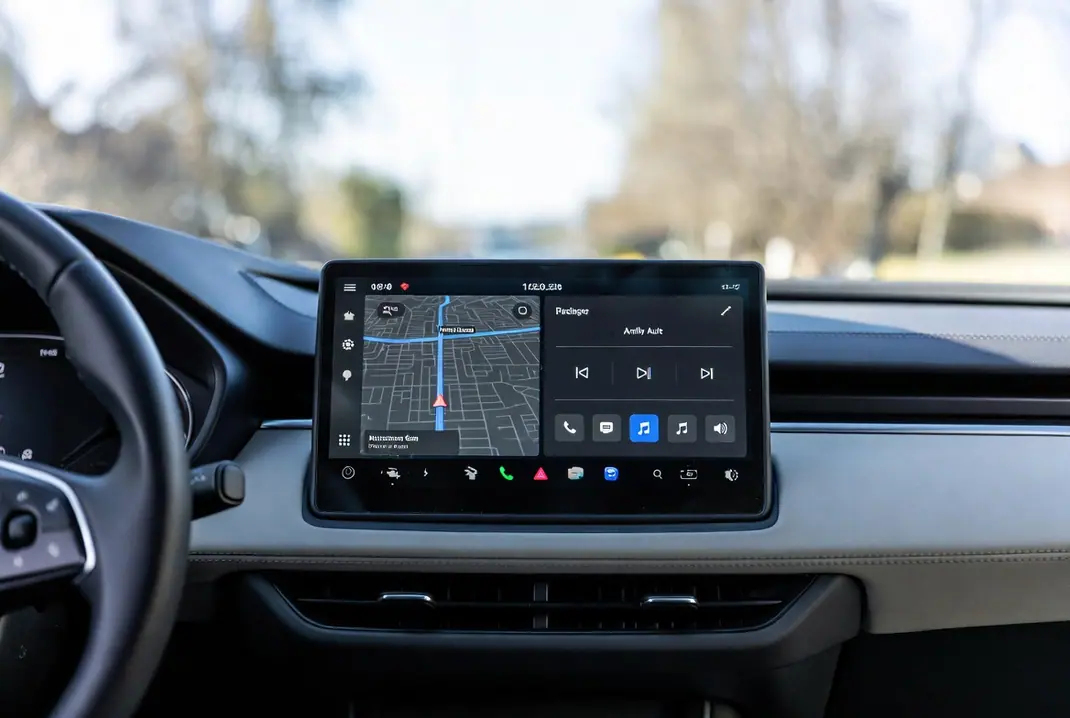
Android Auto is basically the way Google found to bring some of the phone’s functions to the car’s screen. Instead of handling the phone while driving, you use a simpler interface with larger buttons, designed specifically to be used behind the wheel. You can find more information on the official Android Auto page.
There is still a common confusion: many people think that Android Auto is an operating system installed in the car. It is not. The system continues to run on the phone. The car only displays the interface and allows control through the screen, the steering wheel buttons or voice commands.
That would be Android Automotive, which works independently and does not need the phone. Android Auto works as an extension of your smartphone. The phone continues to handle all the processing, manage the internet connection and run the apps. The car simply shows the adapted interface and allows control through the touchscreen, steering wheel buttons or voice commands.
In 2026 the latest version of Android Auto is in the 17.x line and already includes much deeper integration with Gemini, Google’s artificial intelligence assistant. This means you can speak much more naturally, correct instructions in the middle of a sentence, ask for several things at once and get contextual answers. For example, you can say “Ok Google, I’m running late, tell João I’ll arrive in twenty minutes and ask him if he wants me to bring anything” and the system understands everything at once.
The platform is available on the vast majority of modern Android phones and on hundreds of car models, from the most recent ones to many used cars that left the factory with compatibility or that can be adapted with aftermarket multimedia systems. You can check the list of cars compatible with Android Auto on Google’s official website.
What is Android Auto for
The main goal of Android Auto is to reduce distractions while driving. Instead of grabbing the phone, the driver uses the car’s screen or, even better, voice. The main functions in 2026 are:
- Navigation with Google Maps or Waze, with real-time traffic information, radar alerts, accidents and roadworks.
- Playback of music, podcasts and audiobooks through apps such as Spotify, YouTube Music, Deezer, Amazon Music or Audible.
- Phone calls and sending/receiving messages (WhatsApp, Telegram, SMS) controlled almost exclusively by voice.
- Use of the Gemini assistant for searches, reminders, calendar, weather forecast and even more complex requests.
- In some more recent models, control of certain vehicle functions.
In addition to these basic functions, Android Auto also allows you to customise the home screen, choose which apps appear in the foreground and set automatic replies when you are driving. All of this contributes to a calmer and safer driving experience, especially on long journeys or in cities with heavy traffic.
Even those who have an older car notice a significant difference in everyday life. Stopping constantly handling the phone makes driving less stressful and reduces the risk of fines or, worse, accidents.
How to install Android Auto in Portugal
In 2026 Android Auto has been officially available in Portugal for several years. It is no longer necessary to resort to APK files from dubious sources as happened in the past, when Google had not yet officially launched the service in our country.
The installation or activation process is simple:
- Open the Google Play Store on your phone.
- Search for “Android Auto”.
- If your phone has Android 10 or a higher version, the app already comes pre-installed from the factory. Just check if there is any pending update and install it.
- On phones with Android 9, you will have to download and install the app normally.
- After installing or updating, open the app and grant all the requested permissions: location, contacts, microphone, notifications, calls and messages. These permissions are essential for everything to work correctly.
- Accept the terms of use.
From this moment on, Android Auto is ready to be used. However, it only becomes truly active when you connect the phone to the car. You don’t need to do any further configuration on the phone until the first connection.
How to connect Android Auto
There are two main ways to connect Android Auto: via USB cable and wirelessly. Each has its advantages and disadvantages.
Connection via USB cable (the most stable and recommended for most people)
- Make sure the car is in neutral or with the handbrake applied.
- Use a good quality USB cable. Preferably the original phone cable or a certified cable that supports high-speed data transfer. Many connection and disconnection problems come precisely from cheap cables that only serve to charge the battery.
- Connect the phone to the car’s USB port marked as “Data” or that has the Android Auto or Apple CarPlay symbol. Some vehicles have several USB ports and not all of them work for this purpose.
- An authorisation request should appear on the car’s screen. Accept it.
- A permissions request will also appear on the phone. Accept everything that is requested.
After these steps, Android Auto should start automatically. On subsequent uses the process is normally automatic.
Wireless connection
To use Android Auto wirelessly you need to meet some requirements:
- Phone with Android 11 or higher (some Samsung and Google Pixel models work from Android 10).
- Support for 5 GHz Wi-Fi on the phone.
- Car or multimedia system compatible with wireless Android Auto.
Steps for the first configuration:
- In the vast majority of cases it is necessary to make an initial connection via USB cable to activate wireless mode.
- After the first cable connection, turn on Bluetooth and Wi-Fi on the phone.
- On the car’s multimedia system choose the wireless Android Auto connection option.
- Follow the instructions that appear on the car and phone screens.
On subsequent uses the system should connect automatically as soon as you get into the car, as long as Bluetooth and Wi-Fi are turned on. The wireless connection is very practical, but it can be slightly less stable than the cable connection, especially in areas with a lot of Wi-Fi network interference.
How to update Android Auto
Keeping Android Auto updated is one of the most effective ways to avoid stability problems and gain access to new features, particularly the improvements to Gemini. You can update Android Auto on the Play Store as follows:
- Open the Google Play Store.
- Tap your profile picture in the top right corner.
- Choose the “Manage apps and device” option.
- Look for Android Auto in the list of available updates and tap “Update”.
If no update appears, you can force the check by tapping the three dots in the top right corner and choosing “Update all”, or simply search for “Android Auto” in the Play Store.
In some rarer cases, especially when there are serious bugs in a recent version, some users choose to manually install a previous version through APK files from reliable sources (such as APKMirror). This solution should only be used as a last resort and with caution.
It is recommended to keep automatic updates activated so you don’t have to worry about this process regularly.
Why Android Auto disconnects
Disconnections are by far one of the most reported problems by users. In 2026 the most common causes are:
- Poor quality, damaged or excessively long USB cable.
- Car USB port that only allows charging and not data transfer.
- Overly aggressive battery saving settings on the phone, which “kill” the app in the background.
- Interference from apps such as VPNs, ad blockers, data managers or battery optimisers.
- Phone overheating during use.
- Outdated version of Android Auto or the car’s multimedia system software.
- Stability problems with the Bluetooth or Wi-Fi connection (in the case of wireless connection).
- Aged cables or USB ports, something quite common in used cars.
Practical solutions that usually solve the problem:
- Immediately replace the cable with a recognised quality one and the shortest possible.
- Test all available USB ports in the car.
- Go to Settings > Apps > Android Auto > Battery and select the “No restrictions” option.
- Temporarily disable any VPN, ad blocker or optimisation app.
- Completely restart the phone and the car’s multimedia system (often it is enough to turn the car off for a minute).
- Clear the Android Auto cache: Settings > Apps > Android Auto > Storage > Clear cache.
- If the problem started after a recent update, consider temporarily going back to a previous stable version.
In most cases, the combination of a good cable and disabling battery restrictions solves the large majority of disconnections.
Why Waze doesn’t work on Android Auto
Waze continues to be one of the most popular navigation apps in Portugal, thanks to radar alerts and real-time community information. However, its integration with Android Auto is not always perfect. The most frequent problems are:
- The Waze icon simply does not appear on the car’s screen.
- Waze opens on the phone instead of being projected on the car’s screen.
- Voice alerts and radar warnings stop working.
- The volume of Waze alerts is linked to the music volume and cannot be controlled separately.
- The app freezes, shows a black screen or stops responding.
How to solve these problems:
- Make sure that both Waze and Android Auto are updated on the Play Store.
- Open the Android Auto app on the phone, go to Settings and look for the “Customise launcher” or “Customize launcher” option. Check if Waze is activated in the list of allowed apps.
- Grant Waze all the necessary permissions, especially background location and microphone access.
- Clear the cache and data of Waze (Settings > Apps > Waze > Storage).
- Force stop both Waze and Android Auto and reconnect the system.
- If the problem is the volume of the alerts, try leaving Waze in the foreground while driving or set it as the default navigation app.
- As a last resort, completely uninstall Waze, restart the phone and reinstall it from scratch.
Many users report that these steps resolve the situation after recent updates to Android Auto or Waze itself.
Extra tips to get the most out of Android Auto in 2026
- Use voice commands with Gemini whenever possible. The more natural the way you speak, the better the results.
- Organise the apps on the Android Auto home screen to have quick access to the ones you use most frequently.
- Activate a customised “Do Not Disturb” mode for driving, to avoid unnecessary notifications.
- If your car does not have Android Auto from the factory, there are aftermarket multimedia systems and wireless adapters on the market (such as those from the Carlinkit brand) that allow you to add this functionality in a relatively simple and economical way.
- Keep the phone with a good battery percentage or connected to charging, because Android Auto consumes quite a lot of power and mobile data.
- On long trips, take the opportunity to download offline maps on Google Maps or Waze, in case you pass through areas with weak network coverage.
Conclusion
Whether you have a recent car or one of the many older vehicles still seen on Portuguese roads, getting the configuration right and quickly solving the most common problems really changes the driving experience. When you follow the steps in this guide, keep everything updated and apply the solutions for disconnections and for Waze, Android Auto stops being something that sometimes irritates and starts working almost without you noticing — which is exactly what you want when you are driving.
At the end of the day the goal is simple: to be able to concentrate on the road and arrive at your destination with less stress and more safety. If you have any specific question about your phone or car model, or if a problem appears that has not been clarified here, leave a comment.