There’s a strange feeling when you get into the car, sit down, start the engine, and the screen stays silent. Your phone is in your pocket, the music you want to listen to is just a tap away, the route is already set… and nothing happens. Apple CarPlay should be working. Sometimes it works perfectly. Other times CarPlay won’t connect or simply isn’t working. In 2026 this system remains one of the best ways to make driving safer and less stressful, especially with the wireless CarPlay version.
This guide was written to answer all the questions people actually search for: what CarPlay is, what it’s for, where to find it on the iPhone, how to set up CarPlay, how to connect CarPlay, why CarPlay won’t connect, the difference between CarPlay and Android Auto, the best wireless CarPlay adapter, and what works best on motorcycles. Let’s go through it step by step, in clear language and without unnecessary fluff.
What is Apple CarPlay
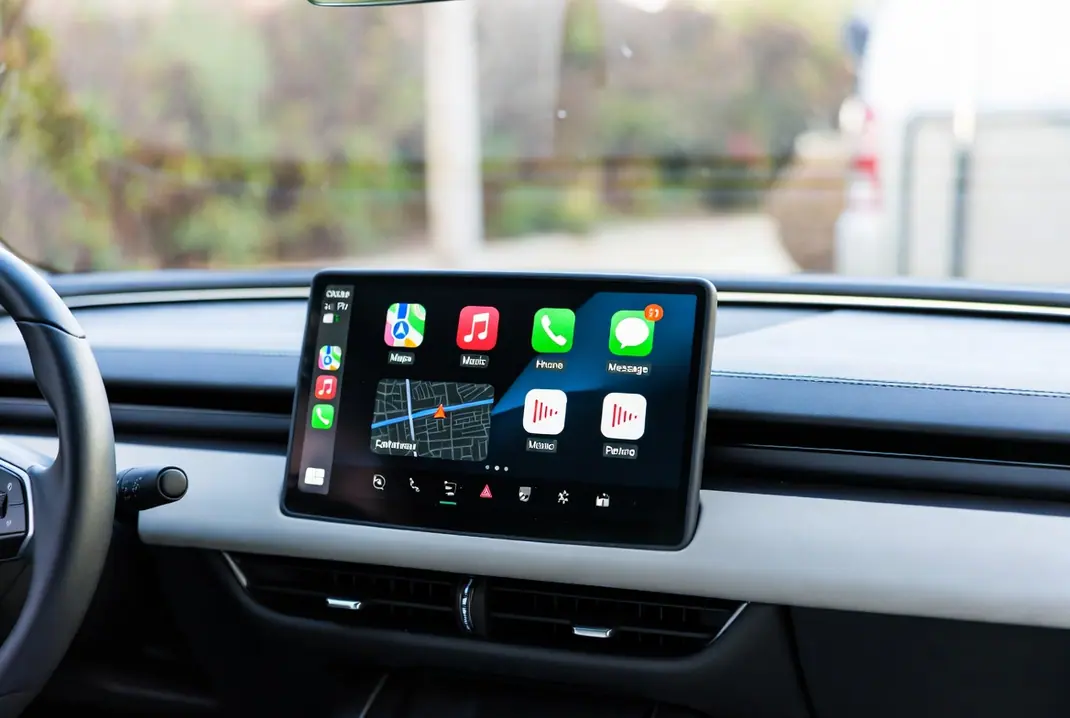
Apple CarPlay is Apple’s official way of bringing your iPhone to the car’s screen. Instead of looking at your phone while driving (which is dangerous and illegal), the system projects the essential apps onto the car’s infotainment display: maps, music, messages, calls, and Siri.
According to the official Apple guide, CarPlay is a smarter and safer way to use your iPhone in the car. It was introduced in 2014 and, unlike many car technologies, has aged well. In 2026 the classic version is still the most widely used. There is also CarPlay Ultra, a deeper version that integrates climate controls and the instrument cluster, but it is still limited to a few high-end models. For the vast majority of drivers, the regular version is what matters: stable, predictable, and compatible with hundreds of vehicles.
The system works in two ways. With a cable, you connect the iPhone to the car’s USB port. With wireless CarPlay (also called CarPlay wireless), the iPhone connects automatically via Bluetooth and Wi-Fi. After the first setup, you just get in the car and CarPlay appears on its own. That’s exactly why so many people look for a good wireless CarPlay adapter: to turn a wired-only system into a wireless one.
Many used cars already come with native CarPlay support, even if the original system is a few years old. In those cases CarPlay can give the infotainment unit a second life and avoid a full replacement.
What CarPlay is for in practice
CarPlay serves three main purposes, and all of them have a real impact on daily driving.
The first is navigation. Instead of having your phone stuck on a mount and constantly looking at it, directions appear on the car’s large screen. You can use Apple Maps, Google Maps, or Waze. Siri or Google voice gives instructions without you needing to take your hands off the wheel.
The second is communication and entertainment. You receive calls, listen to and reply to messages by voice, play music on Spotify or Apple Music, podcasts, and audiobooks. All without touching your phone.
The third is voice control. Siri responds to simple requests such as “call mom,” “send a message saying I’ll arrive in twenty minutes,” or “play the road trip playlist.” In 2026 Siri feels more natural, especially on newer iPhones with Apple Intelligence.
In practice, CarPlay reduces distraction and makes driving calmer. Anyone who spends many hours on the road notices the difference within the first week.
Where to find CarPlay on the iPhone and how to set up CarPlay
One of the most common questions is “where is CarPlay on the iPhone” and “how to connect CarPlay.” The answer is straightforward:
Open the Settings app → General → CarPlay.
There you’ll find the list of already paired cars and the “Available Cars” option.
How to activate CarPlay with a cable
- Connect the iPhone to the car’s USB port that has the CarPlay or smartphone symbol (note: not all USB ports transfer data — some only charge).
- A confirmation prompt should appear on the car’s screen.
- On the iPhone, confirm that you want to use CarPlay.
- From then on, the connection is usually saved.
How to set up wireless CarPlay
- Turn on Bluetooth and Wi-Fi on the iPhone.
- On the car, go into the Bluetooth devices or wireless connection menu (the name varies by brand: App Connect, Smartphone Integration, etc.).
- On many models, simply press and hold the voice command button on the steering wheel to start pairing.
- On the iPhone go to Settings → General → CarPlay and select your car.
- Accept the permissions that appear.
After the first setup, the system usually connects automatically as soon as the engine starts. If the car supports both versions (wired and wireless CarPlay), you can choose which one you prefer to use.
You can find the complete and up-to-date instructions on the Apple Support page.
What’s the difference between CarPlay and Android Auto
They are systems with the same goal but different experiences.
CarPlay was designed for people who live inside the Apple ecosystem. The interface is clean, consistent, and not very customizable. Siri responds well to simple commands and the integration with Apple apps is excellent. In 2026 it remains the most stable and predictable experience for iPhone users.
Android Auto is more flexible. It allows you to rearrange icons, has the Google Assistant (now with Gemini capabilities on many phones), and usually offers more third-party apps. Navigation with Google Maps and Waze is very good, and Google’s voice usually understands more complex requests better.
Practical summary:
- If you use an iPhone, CarPlay is the natural choice.
- If you use Android, Android Auto is the obvious path.
- If you share the car with someone who uses the opposite system, look for a wireless CarPlay adapter that also supports Android Auto.
There is no absolute winner. There is only the system that matches the phone you carry in your pocket every day.
If you’d like a complete and up-to-date guide to Android Auto (including how to install, connect, update, and fix disconnection issues as well as problems with Waze), you can check out our article: Complete Android Auto Guide 2026.
Why CarPlay won’t connect, isn’t working, or doesn’t start
This is the question people ask most often: “why won’t CarPlay connect,” “why isn’t CarPlay working,” or “why won’t my CarPlay connect.” The good news is that most problems have relatively simple solutions.
Here is the checklist that solves the vast majority of cases:
- Poor-quality cable If you use the wired version, the cable is the number-one culprit. Many cheap cables only charge the battery and do not transfer data. Replace it with an MFi-certified or original Apple cable and try again.
- Forget the car and pair again Go to Settings → General → CarPlay → tap your car → “Forget This Car.” Then start the connection process from scratch. This fixes many old pairing conflicts.
- Restart everything Fully restart the iPhone. Turn the car completely off (not just accessory mode). Wait at least thirty seconds and try again.
- Wi-Fi and Bluetooth Both must be turned on. With wireless CarPlay, Bluetooth makes the initial contact and Wi-Fi carries the heavy data (maps, music, etc.). Also make sure the CarPlay network has the “Auto-Join” option enabled.
- VPN or hotspot An active VPN on the iPhone often interferes with the wireless connection. Temporarily disable it and test.
- Screen Time restrictions Go to Settings → Screen Time → Content & Privacy Restrictions → Allowed Apps and confirm that CarPlay is allowed.
- Software updates Keep iOS updated. If the car allows infotainment system updates, perform those as well. Software version mismatches are common after major iOS updates.
- Interference from other devices Bluetooth headphones, watches, dashcams, or even another phone in the car can cause conflicts. Temporarily turn off what you’re not using.
- Wrong USB port Many cars have several USB ports. Only one (or two) usually supports data transfer for CarPlay. Try all of them.
If the steps above don’t solve the problem, check the official Apple troubleshooting recommendations.
If after following these steps CarPlay still isn’t working, the fault may lie in the car’s USB port or the vehicle’s own system. In those cases a good wireless CarPlay adapter usually bypasses the difficulty without needing to touch the original installation.
The best CarPlay adapter and the best wireless CarPlay in 2026
If your car only has wired CarPlay, a wireless CarPlay adapter turns it into a wireless version. In 2026 the most recommended and tested models are:
Carlinkit 5.0 (also known as 2Air)
Still one of the most balanced choices. Connects quickly, receives firmware updates over the internet, and works well with both CarPlay and Android Auto. Ideal if you share the car with someone who uses Android.
Ottocast U2 Air and Mini 3.0
Excellent for iPhone-only users. Very fast startup, compact size, and good stability. Among the favorites for those who want the cleanest possible wireless CarPlay experience.
MSXTTLY 3.0 and MMB Mini
Good alternatives at more accessible prices. They maintain stability even on long trips and don’t tend to overheat too much in summer.
What a good wireless CarPlay adapter should have in 2026:
- Support for 5 GHz Wi-Fi (much more stable than the 2.4 GHz frequency)
- Firmware updates
- Confirmed compatibility with your car model
- Good heat dissipation
These devices are especially useful in used cars that already have factory wired CarPlay but never had a wireless version. Instead of replacing the entire infotainment unit, you install a wireless CarPlay adapter and get a modern experience for several years.
The best CarPlay for motorcycles
On motorcycles the logic changes completely. A simple adapter is not enough. You need a dedicated screen that is resistant to rain, constant vibration, and strong sunlight.
In 2026 the most solid solutions are dedicated screens with native support for CarPlay and Android Auto:
- Carpuride and RiderNav – Good value for money, 5- to 7-inch screens, robust mounts, and water protection.
- Chigee – A more premium option, with solid construction and interesting extra features.
- Aoocci and Lamtto – Good alternatives if you want a larger screen or camera integration.
The ideal is a screen that connects to the motorcycle’s power supply (12 V) and turns off automatically when you cut the ignition. Many models already include offline maps, and some accept motorcycle-specific apps such as Sygic’s Motorbike mode, which includes routes designed for two wheels, weather alerts, and elevation data.
Even on used motorcycles it is possible to install one of these screens without major complications, as long as there is space on the handlebars and a stable power connection. The difference in safety and comfort is enormous: you stop having the phone strapped with improvised mounts and get a readable screen even while wearing gloves.
Conclusion
Apple CarPlay in 2026 remains one of the best ways to make driving safer and more enjoyable. If your car already has native support, activate it and enjoy. If it only has the wired version, a good wireless CarPlay adapter solves the problem permanently. And if you ride a motorcycle, a dedicated screen completely changes the experience.
Whether you’re driving a recent car or looking for used cars with a good infotainment system, CarPlay is worth the time (and sometimes the money) invested in setting it up correctly. Connection failures — when CarPlay isn’t working or won’t connect — are almost always solvable with the steps we covered in this guide. The difference between having the system working well and having it fail constantly is noticeable on every trip.
Set it up properly, choose the equipment that fits your case, and let the iPhone work with you, instead of against you, while you drive.